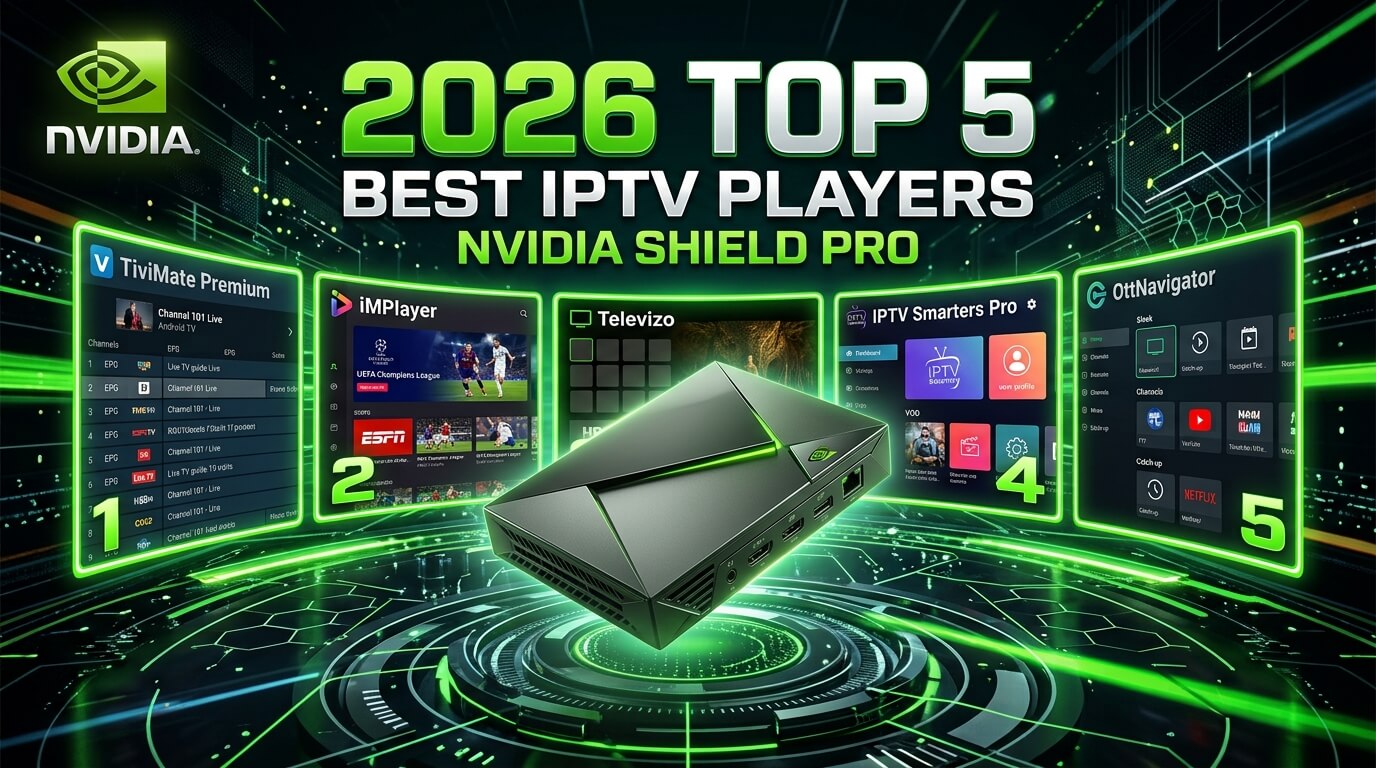
Nvidia Shield IPTV — 5 best apps for Shield & Shield Pro (2026)
Nvidia Shield is the most powerful Android TV device on the market and a perfect
match for high-bitrate IPTV. This guide walks through the five apps
we support on every Shield and Shield Pro — from the smoothest EPG in the business
(TiviMate) to the universal free fallback (IPTV Smarters
Pro), all direct from Google Play, no sideloading required. Every one works
with our
£14.99 IPTV UK trial.
Every Nvidia Shield ever sold — from the 2015 Shield TV to the 2019
Shield Pro — runs full 4K HDR IPTV without breaking a sweat, and every
IPTV app you'd want is on the Google Play Store with a single click. This guide covers
the five apps we actively support on Shield, ranked by how quickly you can go from
"just unboxed the Shield" to watching UK channels, sports, films and series on your
first iptv trial. All five work with the same Xtream Codes credentials
or M3U playlist that come with your iptv subscription — no re-buying,
no per-device fee.
Short on time? The three apps that cover 95% of Shield setups:
TiviMate — the gold standard on Shield, free tier + ~£4.99/yr Premium
OTT Navigator — the power-user pick, multi-playlist + Stalker emulation
About the paid apps
TiviMate Premium, OTT Navigator Premium and Sparkle TV are all
one-off or low-cost purchases
paid directly to the app developer — completely separate from your iptv subscription
with us. Tap any app card below for exact steps.
TiviMate is the gold standard IPTV player on Nvidia Shield — the smoothest EPG on any Android TV device, multi-playlist support, recording, catch-up TV and the cleanest channel switching in the business. The free tier is fully usable for one playlist; Premium (~£4.99/yr) unlocks multiple playlists and reminders. Perfect first pick for a Shield-based iptv subscription.
Log in via
M3U URL or Xtream Codes API
Supported devices
Nvidia Shield · Shield Pro · Fire TV · every Android TV device
Step-by-step
1
Install TiviMate from Google Play
Shield home → Google Play Store → search "TiviMate IPTV Player". Install directly — no sideloading needed on Nvidia Shield, unlike Fire Stick.
2
Add a playlist
Open TiviMate → "Add Playlist" → "Enter URL" (for M3U) or "Xtream Codes" (recommended). Press Next.
3
Enter your login
For Xtream Codes: paste the server URL, username and password from your welcome message. For M3U: paste the M3U link we sent you.
4
Choose an EPG source
When prompted select "Use TiviMate EPG" — your electronic programme guide comes bundled with your iptv service and populates every channel automatically.
5
Customise and stream
Sort channels, hide categories you don't use, pick a skin and set default audio language. Hit OK on the Shield remote from anywhere to open the on-screen guide.
Tip
TiviMate Premium is a one-off ~£4.99/yr paid directly to TiviMate — completely separate from your iptv subscription with us. Worth it if you juggle multiple iptv subscriptions on one Shield.
IPTV Smarters Pro is the free universal fallback on Nvidia Shield — the same app every UK IPTV provider (including us) writes documentation for, available on Google Play with a single click. Not as pretty as TiviMate, but rock-solid, easy to configure and the fastest way onto our iptv service for a fresh Shield out of the box.
Log in via
Xtream Codes API or M3U URL
Supported devices
Nvidia Shield · Shield Pro · Android TV · Fire TV · Android phones
Step-by-step
1
Install from Google Play
Shield → Google Play Store → search "IPTV Smarters Pro". Install (free).
2
Add a new user
Open the app → Accept terms → "Add New User" → "Login with Xtream Codes API".
3
Enter your credentials
Any name (e.g. "Living Room"), then paste the username, password and server URL from your iptv trial welcome message. Save.
4
Start streaming
You land on a home screen with Live TV, Movies, Series and TV Guide tiles. Every channel from your iptv subscription is grouped by category — UK, sports, films, kids, international.
5
Optional: enable external decoder
Settings → General → Preferred Player → set to "MX Player" if any channel refuses to play with the built-in decoder — a common Shield quirk on HEVC 10-bit streams.
OTT Navigator is the most feature-rich free IPTV player for Android TV — multi-playlist, custom HTTP headers, Stalker Portal emulation (rare on Android), multi-EPG, DVR/recording, and one of the very few Shield apps with proper catch-up TV support. If you run multiple iptv subscriptions (ours plus a foreign one for e.g. Arabic or Spanish content), this is the app that lets them coexist on one Shield.
Log in via
M3U URL · Xtream Codes API · Stalker Portal emulation
Supported devices
Nvidia Shield · Shield Pro · every Android TV device
Step-by-step
1
Install OTT Navigator on Shield
Google Play Store → search "OTT Navigator". Install (free tier is fully usable).
2
Add your playlist
Open OTT Navigator → Settings → Playlists → Add → choose Xtream Codes (recommended) or M3U. Give it a nickname such as "IPTV UK".
3
Paste your login
For Xtream Codes: server URL + username + password from your welcome message. For M3U: paste the M3U link. Save.
4
Configure the EPG
Settings → EPG → Add EPG source. OTT Navigator auto-detects the XMLTV EPG bundled with your iptv subscription. If it doesn't appear, WhatsApp us for the direct XMLTV URL.
5
Enable catch-up TV
On any channel with a catch-up icon, long-press with the Shield remote → Timeshift. Rewind up to 7 days on supported UK channels — a killer feature of our iptv service on Shield.
Tip
OTT Navigator Premium (~£2/month) unlocks reminders, unlimited EPG sources and DVR — worth it for heavy users. Payment is directly to the developer, separate from your iptv subscriptions with us.
The open-source route. Kodi with PVR IPTV Simple Client is the free power-user setup on Nvidia Shield — infinitely customisable through skins and add-ons, and the only route if you already run a full Kodi media centre and want your IPTV channels alongside your local library. A bit more setup than TiviMate, but the flexibility is unmatched.
Log in via
M3U URL + XMLTV EPG
Supported devices
Nvidia Shield · Shield Pro · every Android TV device
Step-by-step
1
Install Kodi from Google Play
Shield → Google Play Store → search "Kodi". Install the official Kodi Foundation build (free).
Sparkle TV is the premium interface pick on Android TV — a Netflix-style poster grid, native Android TV navigation and one of the cleanest EPGs on Nvidia Shield. A one-off ~£4.99 (no subscription) unlocks the whole app. Ideal for viewers who want their iptv service to look and feel like a native streaming app rather than a channel list.
Log in via
M3U URL or Xtream Codes API
Supported devices
Nvidia Shield · Shield Pro · Android TV
Step-by-step
1
Install Sparkle TV
Google Play Store on Shield → search "Sparkle TV". Buy the one-off ~£4.99 unlock and install.
2
Add a playlist
Open Sparkle TV → Settings → Add Playlist → choose Xtream Codes or M3U.
3
Enter your details
Nickname → server URL / M3U link → username → password (Xtream Codes only). Save. Sparkle downloads your playlist and matches poster art automatically.
4
Wait for the EPG
The full electronic programme guide populates within about 60 seconds for a UK line-up. Poster art continues to fill in over the next few minutes as Sparkle scrapes metadata.
5
Set up your remote controls
Settings → Remote → assign the Shield remote number keys to your favourite channels for one-click zapping.
Tip
Sparkle TV is the best-looking IPTV app on Shield if you have a partner or family who find TiviMate too "technical" — the poster grid is much more forgiving.
Which Nvidia Shield IPTV app should I actually use?
If you want the shortest possible answer: install TiviMate first —
even the free tier beats every other free option on Shield, and the ~£4.99/yr Premium
upgrade is trivial. If the interface feels overwhelming, IPTV Smarters
Pro is simpler and 100% free. Power users who juggle multiple
iptv subscriptions or need Stalker Portal emulation should reach for
OTT Navigator.
Nvidia Shield (2019, standard) owners
The standard Shield handles every app in this guide at full 4K HEVC HDR. Stick to one
app at a time to keep the 2 GB RAM comfortable. TiviMate + our
iptv service is the classic combo.
Nvidia Shield Pro owners
Shield Pro is our top recommendation for a serious UK iptv service —
3 GB RAM lets you keep TiviMate + Kodi + Sparkle TV all warm in memory for instant
switching, and the full-size Ethernet port means you can hard-wire the Shield for
the smoothest possible 4K UK sport.
Match frame rate, HDR & Dolby Atmos
Turn on "Match content frame rate" in Shield → Settings → Device Preferences →
Display. This makes the Shield switch automatically between 50Hz (UK sport, drama),
60Hz (US content) and 24Hz (film) — a difference you feel immediately on any
iptv subscription. Enable Dolby Atmos passthrough in the same menu
for cinema-grade audio on films.
Try our IPTV UK trial on any of these apps
Every app on this page works with our 30-day £14.99 IPTV trial —
same Xtream Codes credentials or M3U playlist, same UK support on WhatsApp. If you buy
Premium on TiviMate or Sparkle TV, that purchase is completely separate from your
iptv subscription with us. One set of
iptv subscriptions credentials works across Nvidia Shield, Fire Stick,
Apple TV, Smart TV, phone and tablet.
Frequently asked questions
Which is the best Nvidia Shield IPTV app in 2026?
For most UK viewers on a Shield, TiviMate is the best Nvidia Shield IPTV app — the free tier alone beats every other free option, and the ~£4.99/yr Premium tier is the cheapest EPG upgrade in the market. If you want completely free with zero fuss, install IPTV Smarters Pro. Power users running multiple iptv subscriptions should install OTT Navigator for its Stalker emulation and multi-playlist support.
Do I need to sideload apps on Nvidia Shield?
No — every app in this guide is on the Google Play Store on Shield, so it installs with a single click. This is a big advantage over Fire Stick, where several apps have to be sideloaded via Downloader. Your iptv uk trial credentials work the same way — Xtream Codes username, password and server URL — no matter which of the five apps you pick.
Shield or Shield Pro — which is better for IPTV?
Both run every app in this guide at full 4K HEVC HDR. Shield Pro adds more RAM (3 GB vs 2 GB) and a full-size Ethernet port, which matters if you plan to run TiviMate + Kodi side-by-side or hard-wire the Shield. For pure IPTV on a single app the standard Shield (2019) is more than enough for our iptv service.
Can I use the same iptv subscription on Shield and my Fire Stick or phone?
Yes. One IPTV Trial iptv subscription covers every device you own — Nvidia Shield, Fire Stick, Apple TV, Smart TV, phone, tablet. Just enter the same Xtream Codes credentials (or paste the same M3U URL) in each app. See our Fire Stick, Apple TV and Mobile & Tablet installation guides for those devices.
Do these apps support 4K HDR and Dolby Atmos on Shield?
Yes — TiviMate, Kodi, Sparkle TV and OTT Navigator all support 4K HEVC, HDR10 and Dolby Atmos passthrough on Nvidia Shield. Enable "Match frame rate" in Shield → Settings → Device Preferences → Display for the smoothest UK sport playback on your iptv subscription. The Shield's dedicated video chip means it handles the highest bitrates on our iptv service without a stutter.
Is IPTV on Nvidia Shield safe and legal in the UK?
Installing the apps in this guide is 100% legal — TiviMate, IPTV Smarters Pro, OTT Navigator, Kodi and Sparkle TV are all legitimate players sold on the official Google Play Store, so they've passed Google's review. What you watch through them depends on your iptv subscription. Every IPTV Trial iptv trial ships from licensed servers with a full UK support team on WhatsApp.
How long does the Shield IPTV setup take?
Under 3 minutes end-to-end for TiviMate — that's the fastest path in this guide. Install from Google Play (30s), add playlist → Xtream Codes (30s), paste credentials (1 min), pick EPG source (30s) and you're watching UK channels. Every IPTV Trial iptv uk trial customer with a Shield follows this exact flow.
Start your £14.99 IPTV UK trial today
Unlock 50,000+ channels on the UK’s risk-free IPTV trial. Activated in minutes. No auto-renewal.
Test the full IPTV service before choosing a longer IPTV subscription.